Create Different CRM Layouts for Different Teams
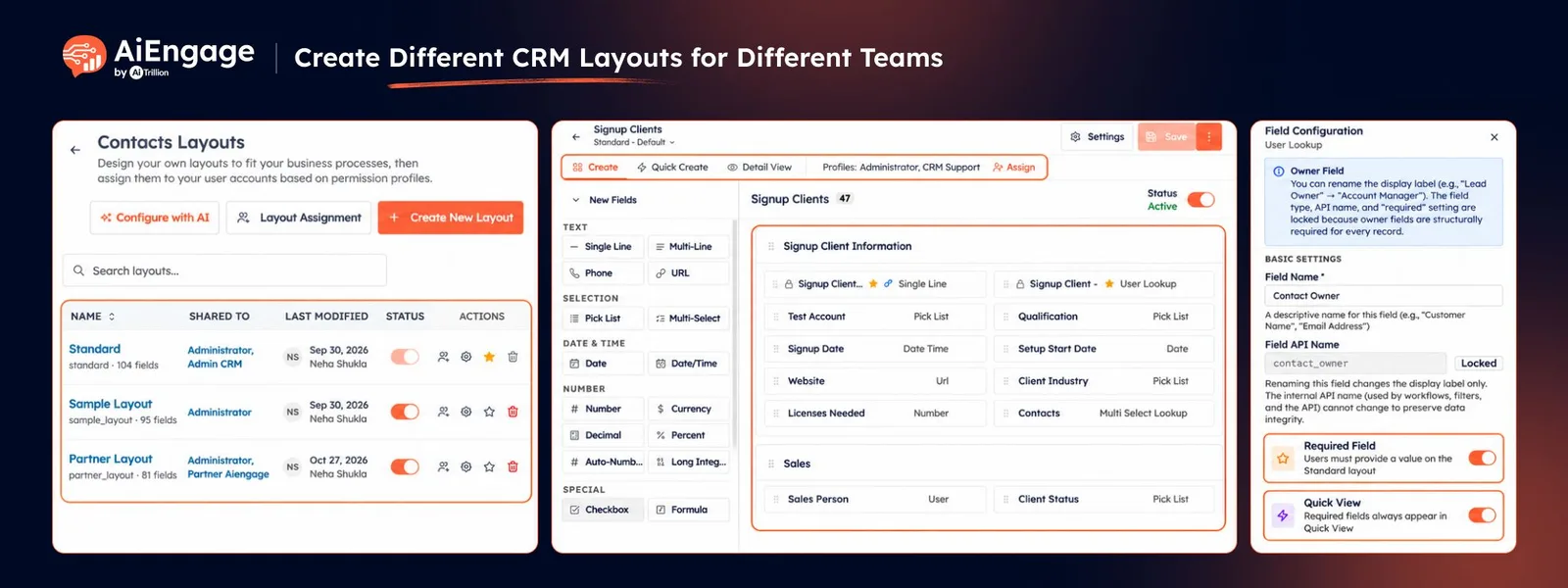
You can now create multiple layouts for the same CRM module in AiEngage CRM.
Instead of making every team work with the same fields and sections, you can create separate layouts for sales, support, operations, or any other team, then show each team only the information they actually need.
🆕 Features
Create Multiple Layouts for the Same Module
Every module starts with a Standard layout.
You can now create additional layouts for modules such as:
Contacts
Companies
Deals
Tickets
Custom modules
Each layout can have its own fields, sections, and form structure.
Clone an Existing Layout
You do not need to build every layout from scratch.
When creating a new layout, choose an existing active layout under Clone From.
The new layout copies its fields, sections, and settings, then becomes completely independent so you can customize it without changing the original layout.
Customize Fields for Each Team
Remove fields that a team does not need and keep only the information relevant to their workflow.
Fields removed from a layout move to Unused Fields, while their existing data remains safe.
You can bring those fields back into the layout whenever needed.
Create and Organize Custom Sections
Each layout can have its own sections.
You can:
Rename sections
Reorder sections
Add new sections
Delete unnecessary sections
Group related fields together
This makes it easier to organize forms around the way each team actually works.
Add New Fields Directly from the Layout Builder
Use the Layout Builder to drag new fields directly into the layout.
You can add different field types such as:
Text
Phone
Pick List
Date
Number
Currency
Checkbox
Lookup
You can also configure field settings such as required fields, Quick View visibility, and pick-list options.
Customize Create, Quick Create & Detail View
Each layout has separate views for:
Create
Quick Create
Detail View
You can organize how fields appear when creating a full record, creating one quickly, or viewing an existing record.
Changes made to one layout do not affect the Standard layout or other layouts.
Assign Layouts to Different Profiles
Once your layout is ready, choose which user profiles should be able to use it.
For example:
Sales layout for sales users
Support layout for support users
Management layout for managers
Operations layout for operations teams
New layouts are initially shared only with administrators, so you can finish configuring them before making them available to other users.
Set a Default Layout
You can choose which layout should be the default for a module.
The default layout is used when a profile does not have a specific layout assigned.
This gives you more control over which form users see when they work with CRM records.
Enable or Disable Layouts
Layouts can be switched on or off without deleting them.
When a layout is disabled, it is no longer offered to users, while the layout configuration remains available if you want to enable it again later.
Let Users Choose the Right Layout
When a module has multiple active layouts and a user has access to more than one, AiEngage can show a layout selector when creating records.
Users can also change the layout of existing records when required.
This makes it easier to use different forms for different processes within the same CRM module.
❤️ Why You’ll Love It?
Give different teams different CRM forms.
Reduce unnecessary fields and clutter.
Organize records around real business processes.
Create layouts for sales, support, operations, and other teams.
Control which profiles can access each layout.
Make fields required only on specific layouts.
Keep unused fields and existing data safe.
Customize Create, Quick Create, and Detail View separately.
Manage multiple business processes inside the same CRM module.
🎯 Use Cases
Sales Layout: Show qualification, deal, budget, and follow-up fields to the sales team.
Support Layout: Show customer issue, priority, ticket, and service-related information to support users.
Management Layout: Create a layout focused on high-level business and performance information.
Partner Layout: Keep partner-specific information separate from regular customer fields.
Industry-Specific Processes: Create different layouts for different services or business processes inside the same module.
Simplified Data Entry: Remove unnecessary fields so teams can create and update records faster.
For more information, visit the AiEngage CRM Help Center or contact the AiEngage CRM support team.
New to AiEngage CRM? Sign Up